Version Merger
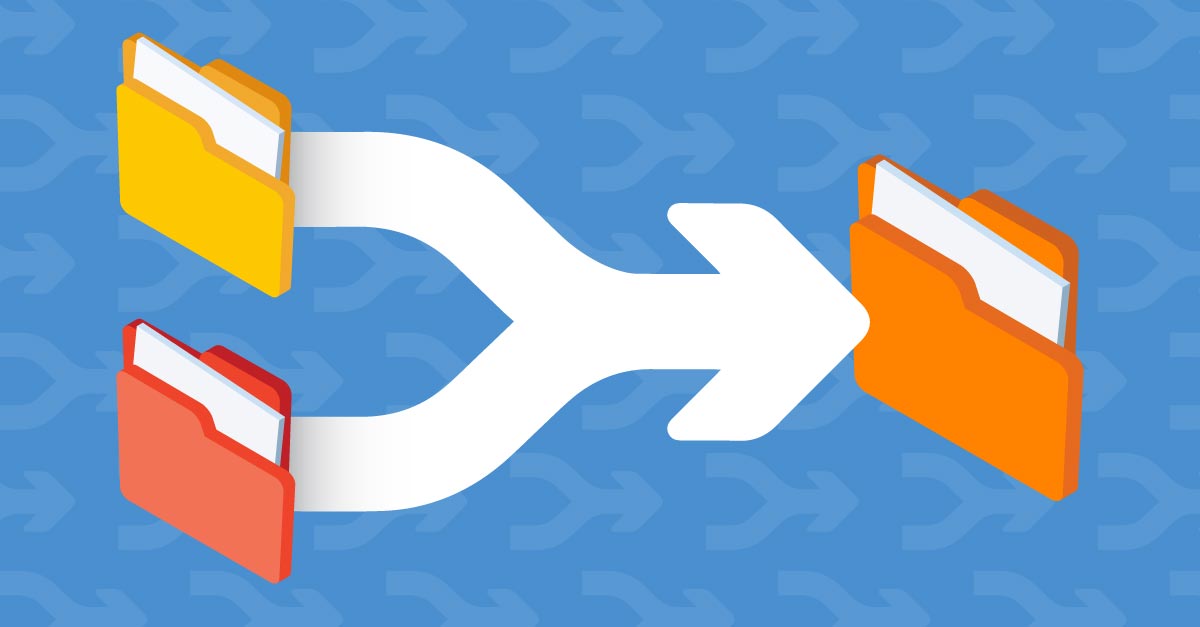
Merge duplicate file versions in seconds — combine change history and metadata into one master copy, without losing a thing.
A common time-waster all architects, engineers, drafters and surveyors face is when we send documents to someone – whether a client, reviewer or collaborator – and they return your files renamed.
Say goodbye to organisation and order. Your documents can be renamed “Document_EDIT” or “Document_FINAL_V5”, your naming conventions could be altered or they may have used their own naming scheme altogether.
Make project information easier to manage with 12d Synergy.
From documents and drawings to emails, models and workflows, 12d Synergy brings everything together in one secure system so your team can work more efficiently from day one.
Book a DemoThe File Juggling Workaround
Fixing this used to require diligent file juggling: download the file, rename it identically to your existing 12d Synergy file, then drag and drop it back into the document management system. The matching files would then be recognised, triggering a prompt to add the file as a new version.
It works, but if you forget to rename the file first, it falls apart — duplicates get created and metadata like change history and attributes can be lost between copies. Slow, and frustrating.
What’s the Solution?
Manually merging documents together isn’t the answer. What you need is a way to merge two versions of a file together, combining all the change history, attributes and other metadata into a single master file.
That’s Version Merger.
5 Second Merging with Version Merger
Version Merger allows users to quickly and simply merge duplicate versions of a file together in 12d Synergy, gathering all the files’ metadata under a single file.
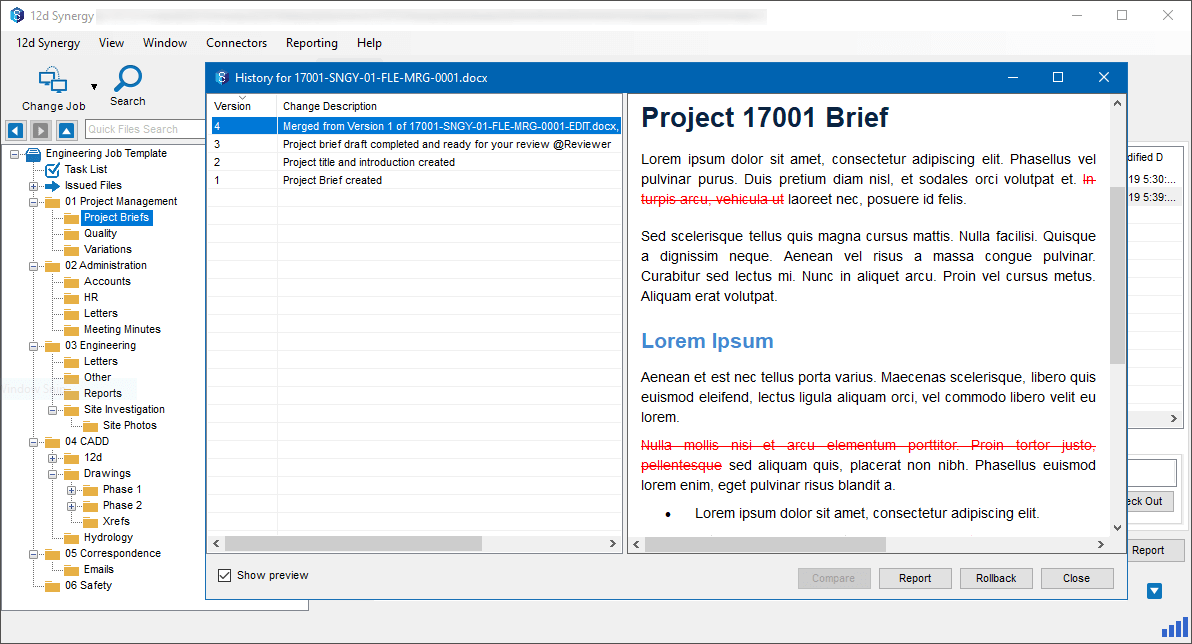
This enables you to keep everything up-to-date, organised and centralised. The duplicate or outdated version is consolidated into the master copy, ensuring your single source of truth is maintained.
Version Merging works on all file types, excluding 12d Model projects and files inside Managed Folders. Note this feature doesn’t combine the file contents, but rather adds the contents and metadata for a file on top of another (this is explained in greater detail below).
The Ins and Outs of Merging Files with Version Merger
Merging files using our Version Merger feature is simple and easy – you don’t need to be Einstein-reincarnated and understand twelfth-dimensional physics.
Let’s walk you through a crash course on merging files in 12d Synergy!
Drag and Drop Merging
The fastest and simplest method for merging versions – and the method we recommend using – is the drag and drop method.
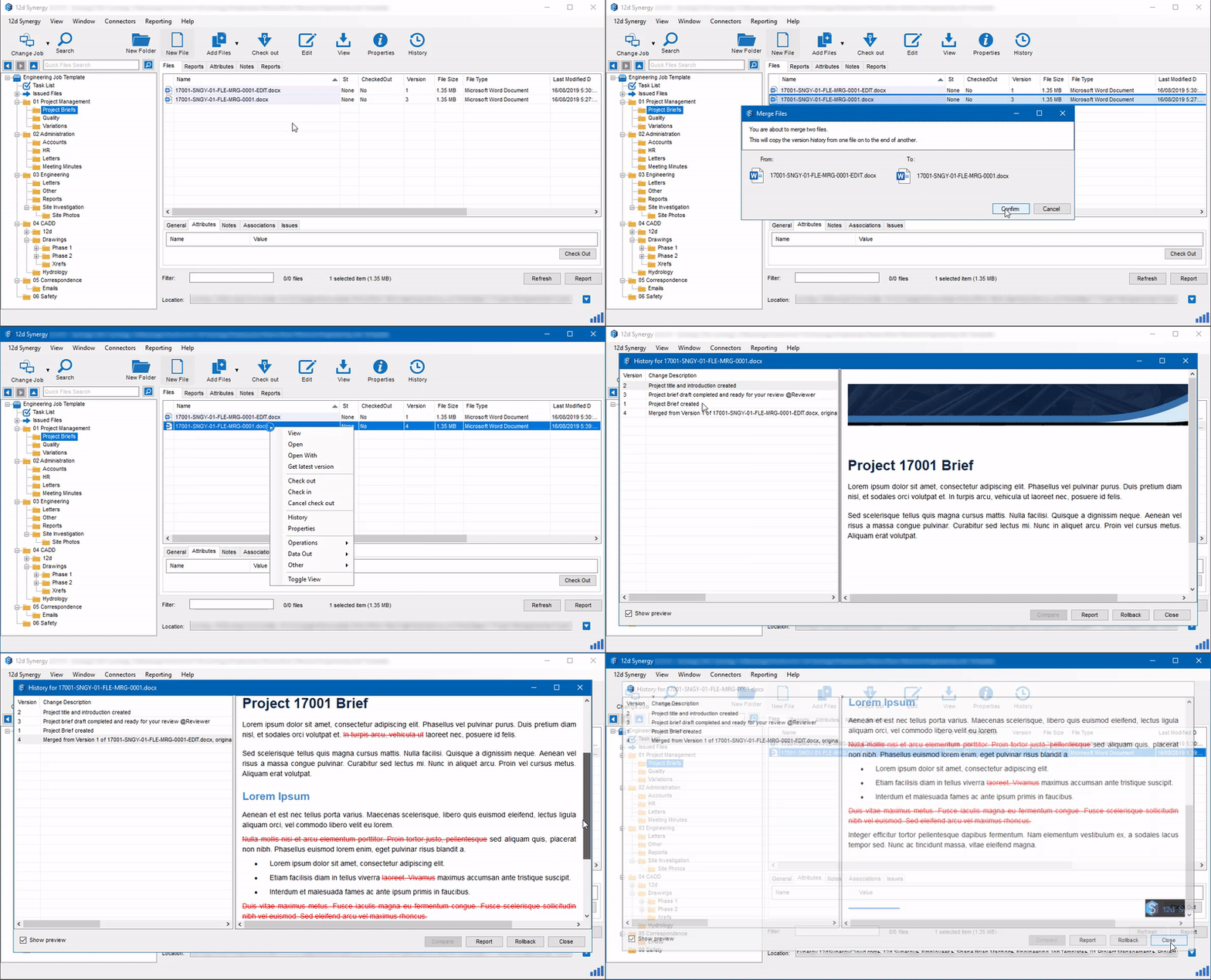
Simply drag the latest version of a file onto the outdated file. This will perform a Merge to Other (see below), combining the metadata of the latest version on top of the outdated version.
Merging from the Operations Menu
Another way to merge documents in 12d Synergy is from the Operations menu, which I’ll walk you through now.
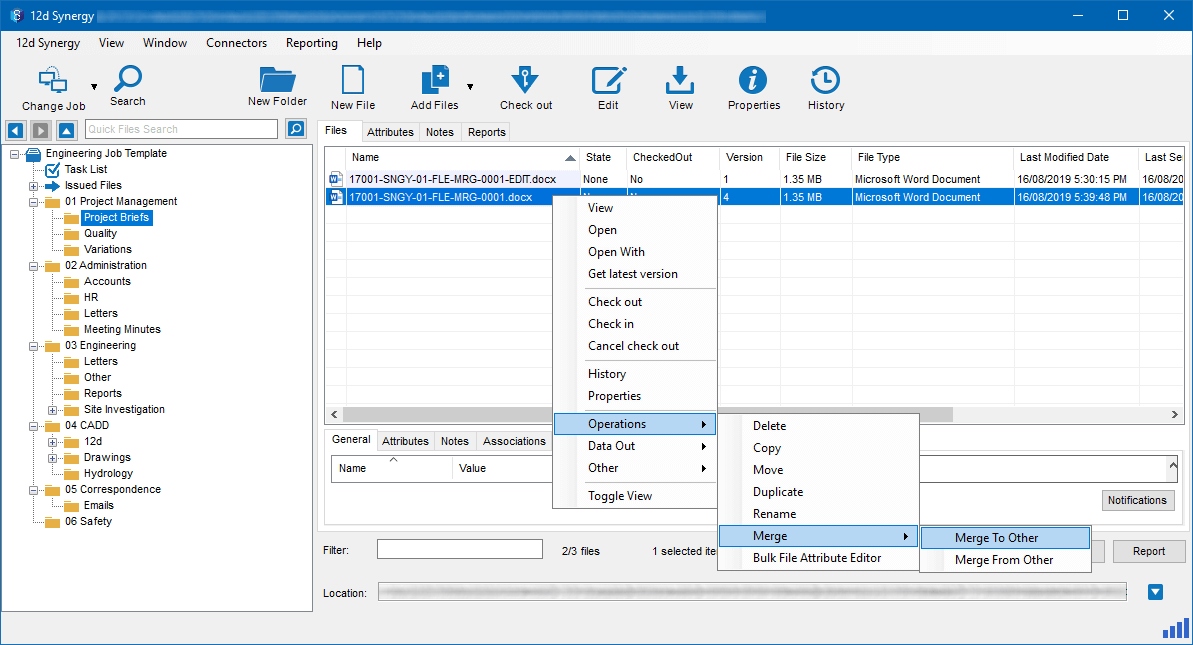
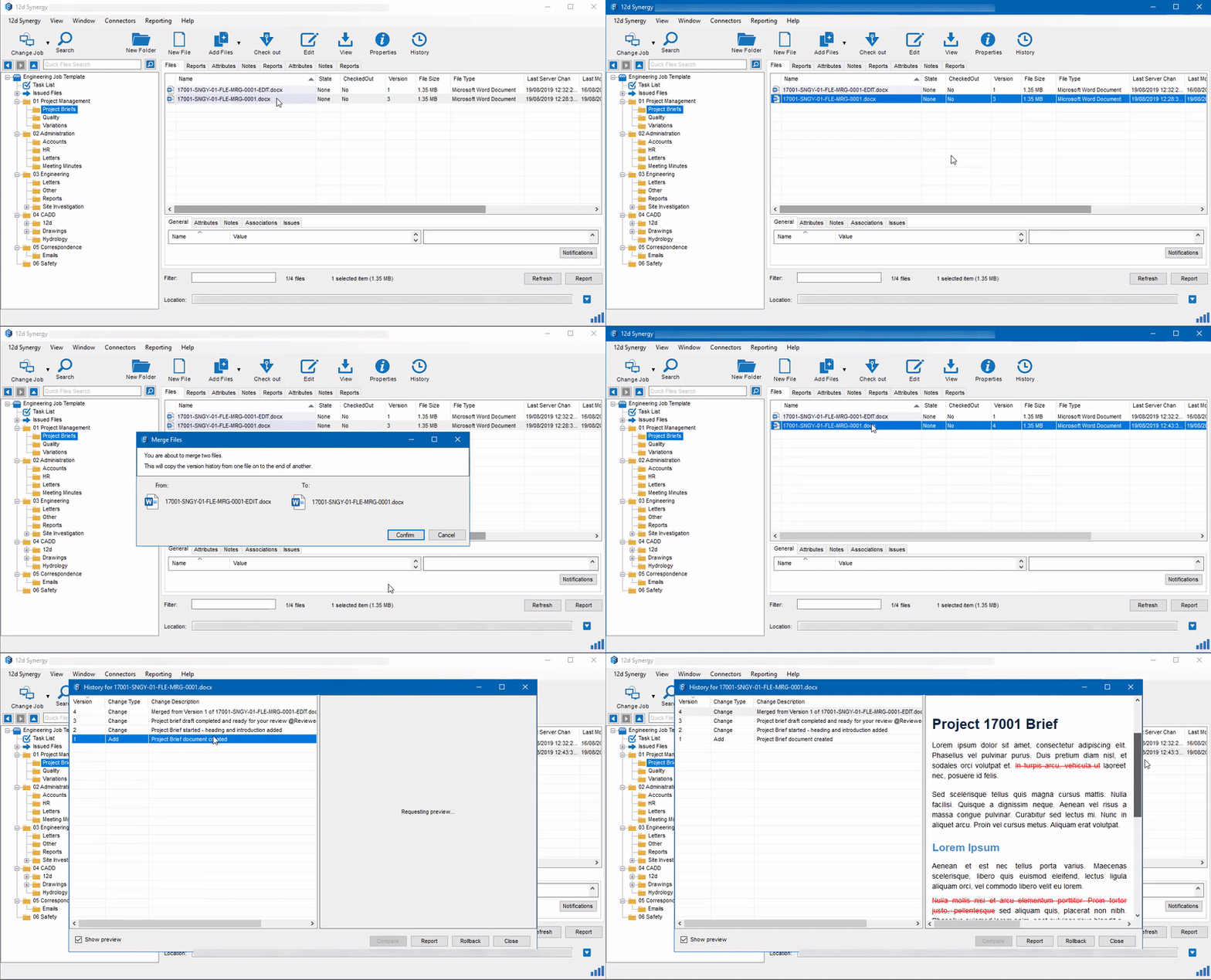
First, in your 12d Synergy client navigate to the file you wish to merge, and right-click it. In the pop-up menu, hover over the ‘Operations’ option and then ‘Merge’, as shown below.
Understanding ‘Merge To’ and ‘Merge From’
You have two options when merging: merging to, and merging from, another version of the file. To explain how this works, let’s denote the file you right-clicked as ‘File A’, and the file you select in the operation menu as ‘File B’.
Merge to Other
‘Merge to Other’ combines the meta data of the selected file, File A, to a file you choose, File B. The contents and metadata of A is added on top of B as a new version. Hence, File A is absorbed and File B becomes the master copy – as demonstrated below.
Merge from Other
On the other hand, ‘Merge from Other’ takes the metadata from the file chosen in the operations menu, File B, and combines it onto the right-clicked selected file, File A. Hence, B is absorbed, and A becomes the master.
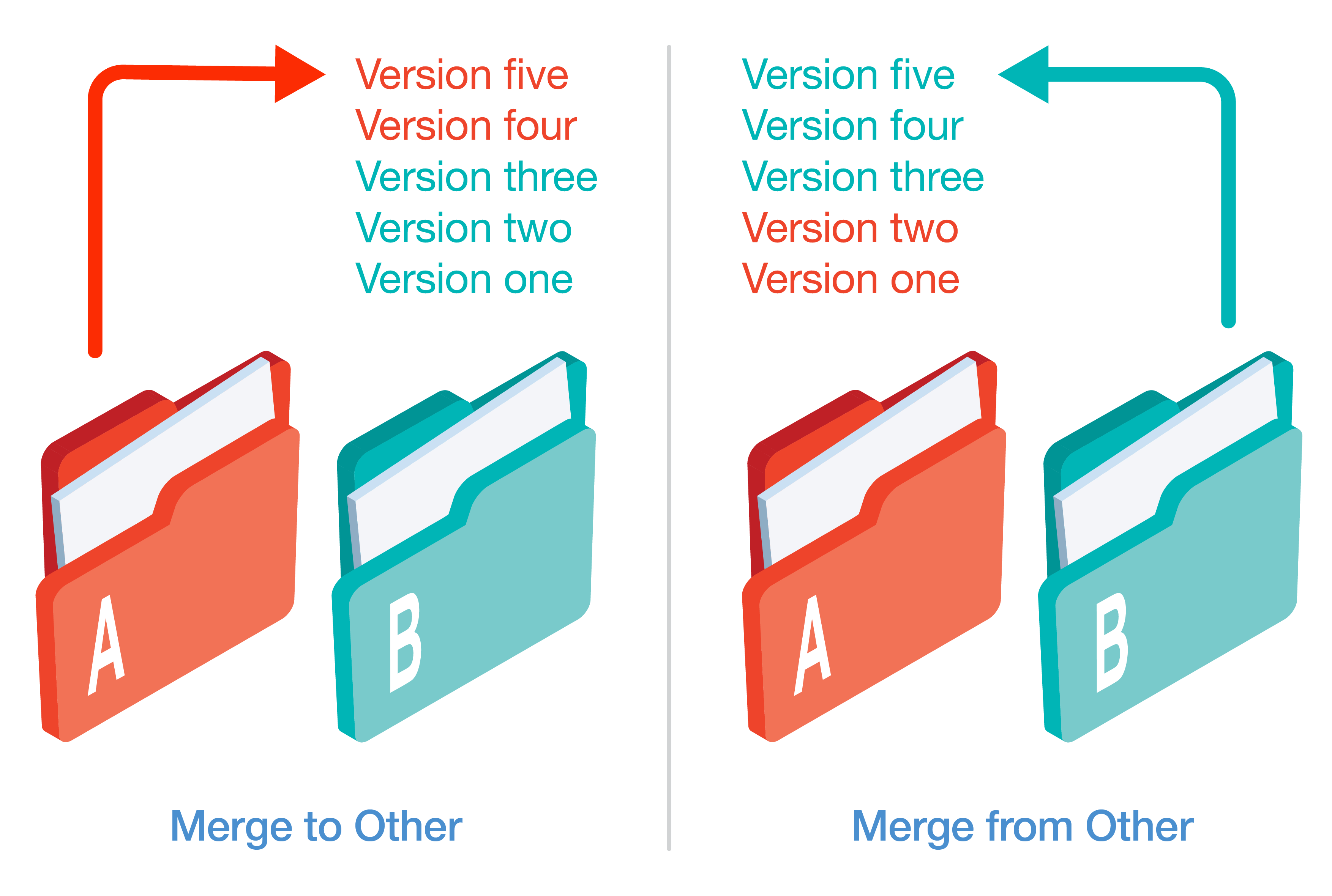
Put simply, if File A is the outdated copy, then use ‘Merge from Other’; if File B is the outdated copy, then use ‘Merge to Other’.
Phew – that was quite the detour – let’s get back on track. In the pop-up menu, under Merge, select either ‘Merge to Other’ or ‘Merge from Other’ (this will depend on which file is the outdated version) and then choose which file you want to combine to/ from.
Once selected, a prompt will appear explaining how the documents will be merged. Then click Confirm, and the two files will be successfully merged! Booyah!

12d Synergy
Common Data Environment
Make project information easier to manage with 12d Synergy.
From documents and drawings to emails, models and workflows, 12d Synergy brings everything together in one secure system so your team can work more efficiently from day one.
Book a Demo