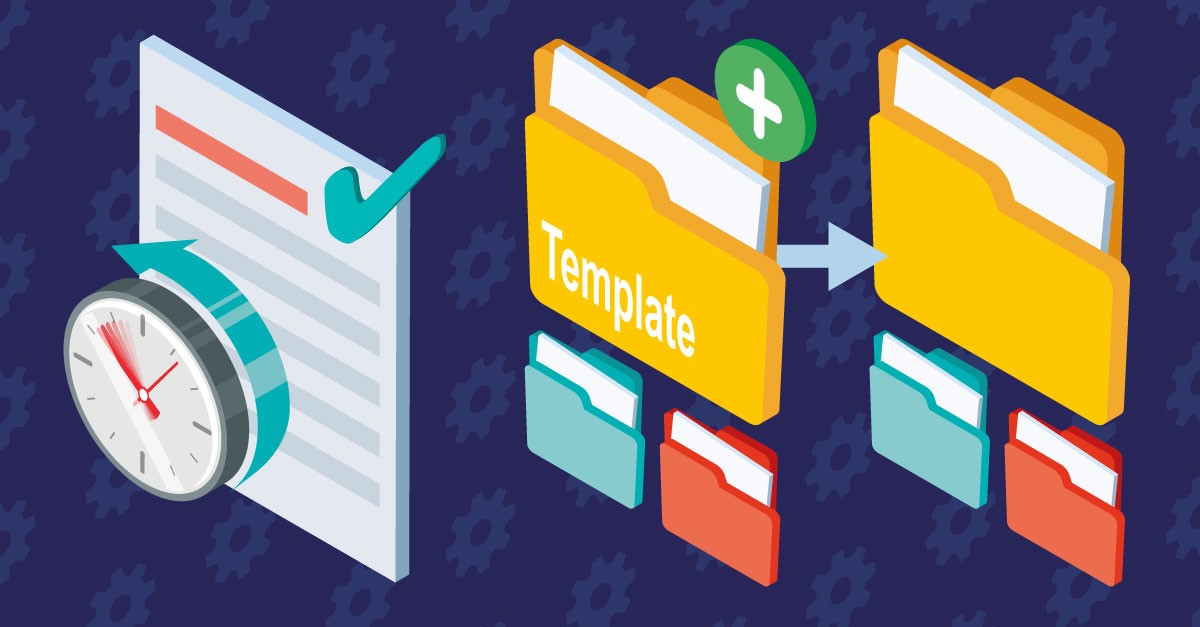
Make Latest Version & Folder Templates
Roll back to any file version in one click, and build entire folder structures instantly — less clicking, more doing.
12d Synergy is all about helping you get more done with fewer clicks. Make Latest Version and Folder Templates let you instantly roll back to a previous version or create an entire folder structure with a single click. It’s a time-saving gadget even Iron Man would be fond of.
Make project information easier to manage with 12d Synergy.
From documents and drawings to emails, models and workflows, 12d Synergy brings everything together in one secure system so your team can work more efficiently from day one.
Book a DemoMake Latest Version
Ever need to instantly roll back to a document’s previous version?
With 12d Synergy’s rock-solid file change history, you can roll back to any version of a file — and Make Latest Version does it in a single click.
How to Roll Back using Make Latest Version
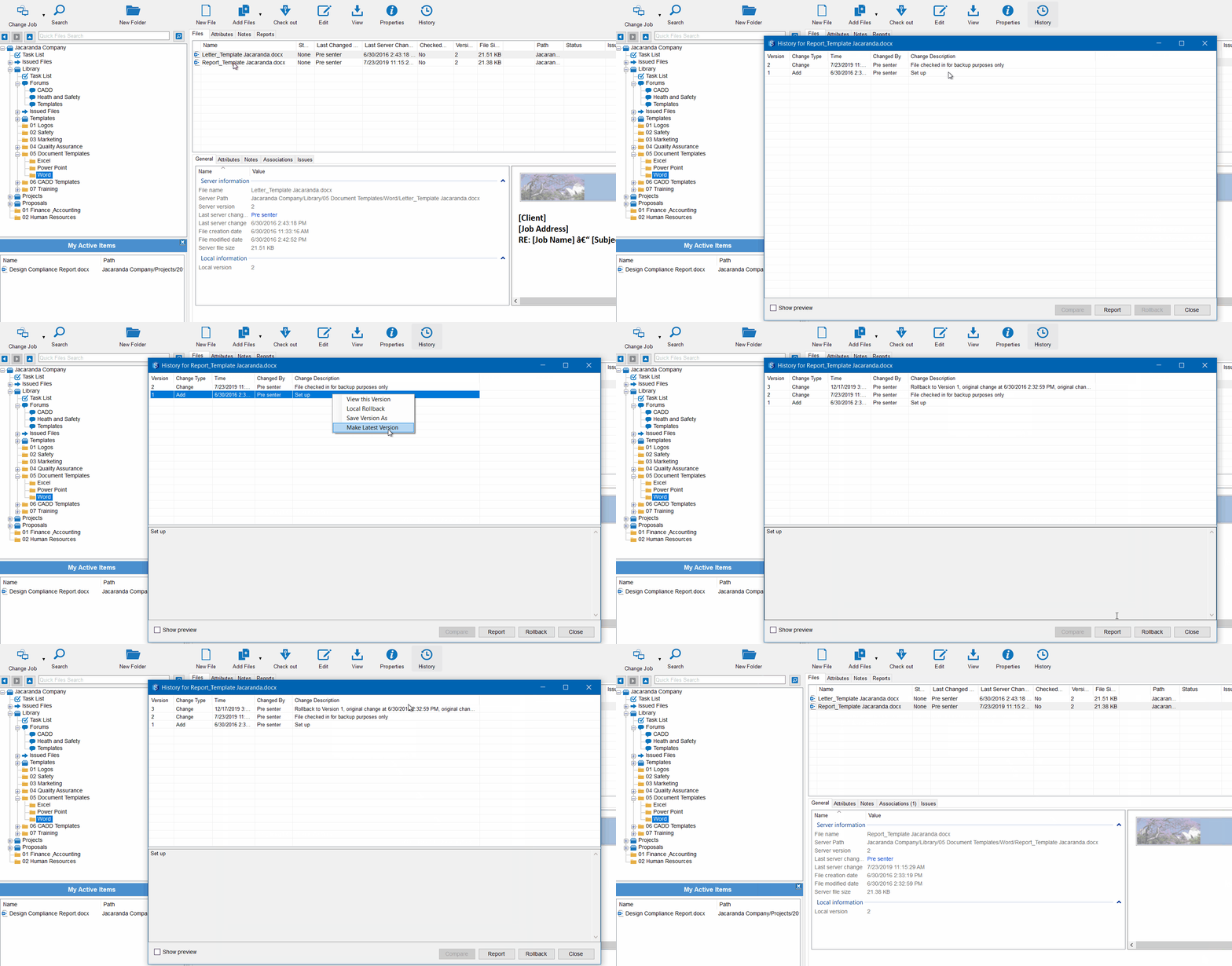
Select the file you want to rollback and then press the ‘History’ icon in the 12d Synergy ribbon bar.
From the history previewer, select the version you wish to rollback to, right-click it and choose ‘Make Latest Version’.
This will then create another version of the document, with the audit history documenting that it’s been rolled back.
Folder Templates
Repetitious folder creation is the last thing you need when you’re bouncing between sites. So we’ve eliminated it!
Folder Templates let you set up a company library of folder structures for easy one-click automation. Eliminating tedious manual folder creation and human error.
They’re ideal for folder of files software – such as Trimble Business Centre or MAGNET Office – where a standard folder structure needs to be created for each project. Folder Templates can include a full structure of sub-folders, files, attributes and user permissions.
How to Set Up a Folder Template
12d Synergy administrators can set up Folder Templates through the Administrator client.
First, build the folder structure you want to use as your template — we recommend doing this in a ‘Folder Templates’ job within your Company Library.
With your structure created, open the Administrator client, navigate to System Settings, then ‘General.’ Find the ‘Folder Template’ job setting and click the value column — this opens a pop-up where you can navigate to and select the job you want to use for your templates.
Your Folder Template is set up.
How to Create Folders from a Folder Template
Simply click the drop-down arrow next to the New Folder icon from the 12d Synergy ribbon. This will give you a list of the Folder Templates your system admin has set up.
If you can’t see this dropdown arrow, your system admin hasn’t enabled Folder Templates.
From here, select the folder template you wish to create from and name your folder. 12d Synergy will then automatically create the folder structure from your template. Neat!

12d Synergy
Common Data Environment
Make project information easier to manage with 12d Synergy.
From documents and drawings to emails, models and workflows, 12d Synergy brings everything together in one secure system so your team can work more efficiently from day one.
Book a Demo