File Watcher
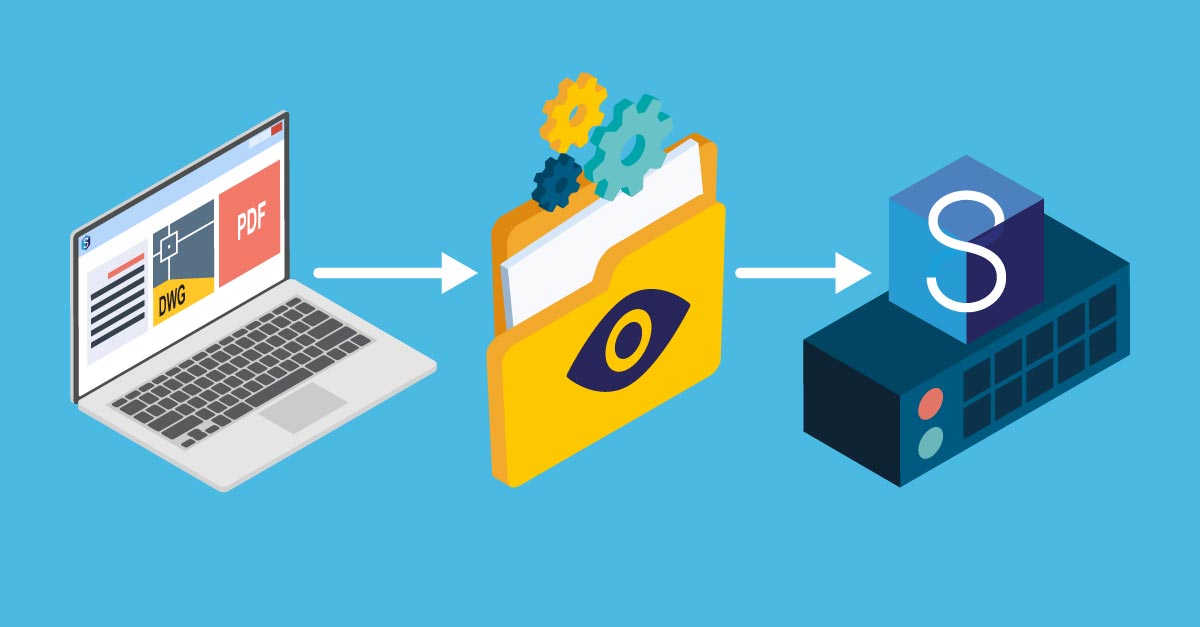
Automatically upload files the moment they land in a folder — no more manual drag-and-drop into 12d Synergy.
Whether you’re downloading a batch of site photos or plotting from CAD, you need a fast, simple way to get files from your local drive into 12d Synergy.
Previously, that meant downloading to your desktop or a temporary folder in Windows Explorer, then manually dragging everything into 12d Synergy. It worked, but it wasn’t exactly intuitive. You need something easier. Something faster.
That’s File Watcher.
Make project information easier to manage with 12d Synergy.
From documents and drawings to emails, models and workflows, 12d Synergy brings everything together in one secure system so your team can work more efficiently from day one.
Book a DemoThe 12d Synergy File Watcher
File Watcher is a dedicated folder on your local computer that automatically uploads any files added to it into 12d Synergy. It runs as a desktop app, living as an icon on your Windows Taskbar.
When files are added to your File Watcher folder, you’ll get a Windows notification. From there, either click the notification or right-click the File Watcher taskbar icon and select ‘Upload Files.’
Once you click upload and choose your destination, it’s the same workflow as usual — any attributes, naming conventions, change descriptions and other rules in your system are triggered automatically.
Uploading Files Using the File Watcher
Whenever a file is added to your nominated File Watcher folder, you’ll be promoted to select which file(s) you wish to upload to 12d Synergy (see images below)
Whole folder structures of files can be uploaded and File Watcher will preserve the structure when uploading into 12d Synergy.
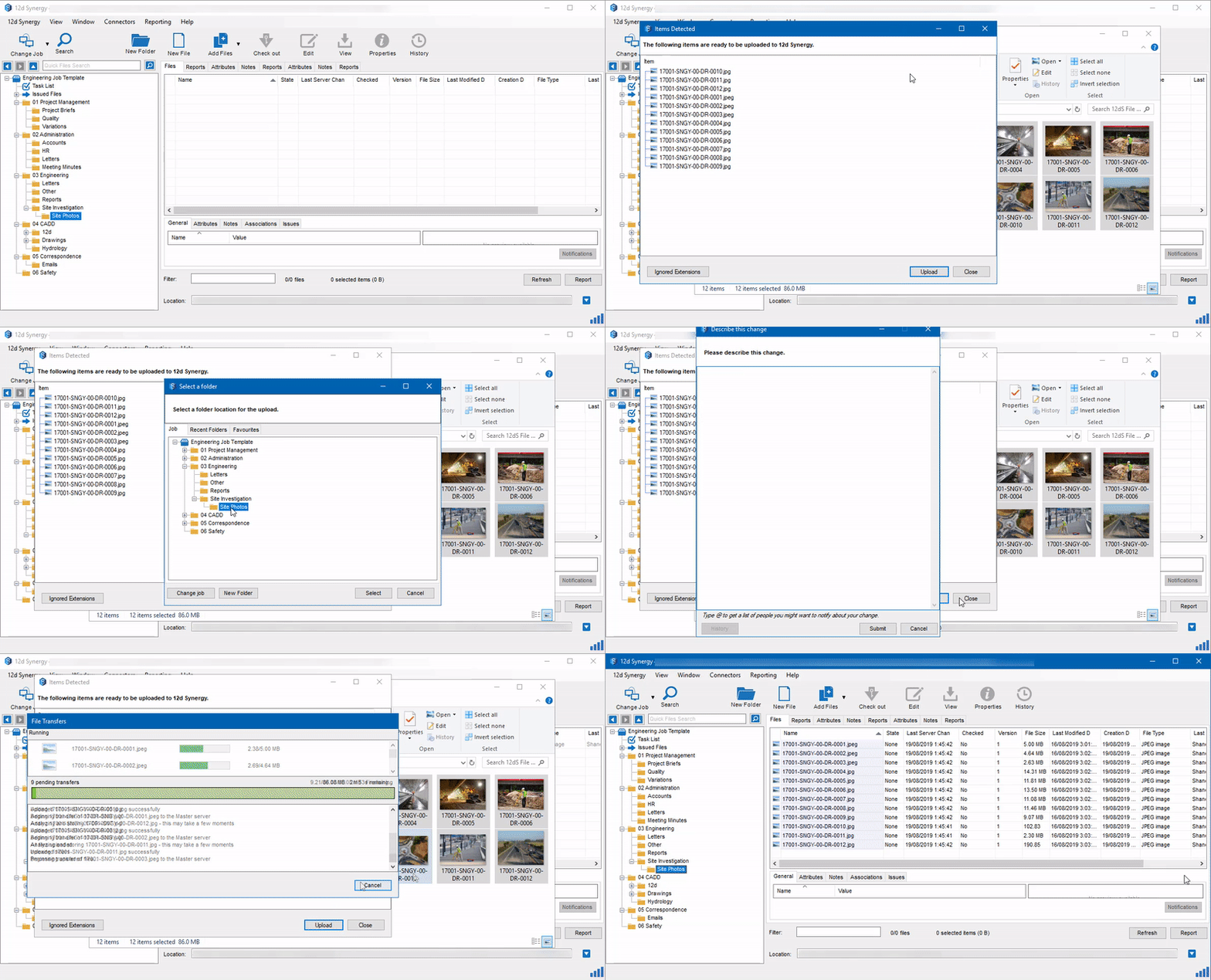
You can also customise File Watcher to ignore specified file extensions, by clicking the ‘Ignored Extensions’ button when uploading. For example, you may want to ignore all ‘.txt’ files.
File Watcher Best Practices
The 12d Synergy team has some best practice recommendations for using the File Watcher.
1. Firstly, you can configure the File Watcher to any folder on your local machine. You can also rename the existing folder. For instance, you could add a new folder on your desktop called “12dS File Watcher”, and then link it to File Watcher.
2. Next, we recommend pinning your File Watcher folder to your Quick Access panel in Windows Explorer. This makes it easier to save and navigate to your watched folder.
3. We also recommend moving files rather than coping them when uploading from your watched folder. This ensures that duplicates aren’t made across your systems, and your watched folder doesn’t contain files that have already been uploaded into 12d Synergy.
4. You may also set up Favourites in your File Watcher to jump to commonly used upload locations. We recommend taking advantage of this, to streamline the process even further.
How to Configure Your Watched Folder
The File Watcher will need to be configured when used for the first time. This involves simply linking your nominated Watched Folder to the File Watcher.
To configure File Watcher, simply right click on the 12d Synergy File Watcher icon on your Windows Taskbar and select ‘Configure’ (see image below).
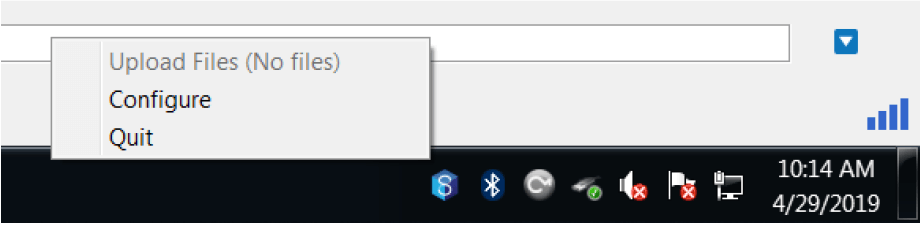
A default ‘Uploads’ folder will have already been created in your 12d Synergy Workspace folder. You can use this folder, rename it or create your own folder – it’s up to you.
To link your nominated folder to the File Watcher, simply copy and paste your URL path into the settings window. Alternatively, you can search for a path manually by clicking the ‘…’ button (see below).
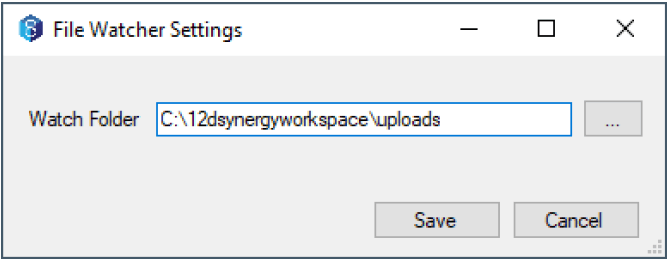
Once you’ve selected your watched folder that’s it – you’ve configured File Watcher! Now whenever a file is added to your nominated folder you will receive notifications to upload into 12d Synergy.

12d Synergy
Common Data Environment
Make project information easier to manage with 12d Synergy.
From documents and drawings to emails, models and workflows, 12d Synergy brings everything together in one secure system so your team can work more efficiently from day one.
Book a Demo