Download Dependencies
Automatically download the customisation files your team needs, the moment a project is opened — no manual steps, no outdated files.
Many software applications beyond 12d Model reference customisation files — AutoCAD and BricsCAD CUI files, for example. Typically, these need to be managed on a network drive or in a document management system so everyone has central access.
But downloading files from network drives can be slow, and network drives are only accessible from within the office — so your customisation files (or any other file) aren’t reachable when you’re working from home or on the go.
With 12d Synergy, you get full version control, permission control and a complete audit trail for your customisation files, accessible from anywhere with an internet connection.
Make project information easier to manage with 12d Synergy.
From documents and drawings to emails, models and workflows, 12d Synergy brings everything together in one secure system so your team can work more efficiently from day one.
Book a DemoChallenges of Managing Customisation Files
Previously, downloading customisations for products beyond 12d Model relied on the ‘Get All’ function — a manual step users had to remember every time. Forget to download before opening a project, or forget that a customisation had been updated, and you could end up working with an outdated version without realising it.
What was needed was a simpler, safer way to download and work with customisation files automatically.
That’s Download Dependencies.
What Are Download Dependencies?
Download Dependencies are rules that automatically download dependent files — like customisations — when a project is opened. For example, opening a CAD project can automatically trigger a download of the contents from its customisation folder.
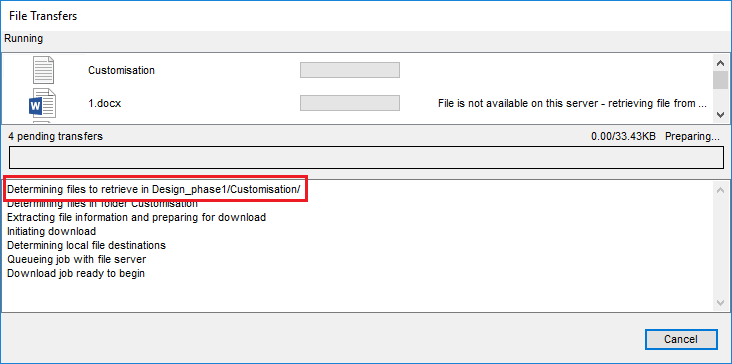
This makes downloading your customisation files for CAD and other products simpler and safer in 12d Synergy by making it automatic. Download Dependencies also enables specific customisations to be downloaded for a particular job. For example, you may have different customisation files for different phases of a project, as shown below.
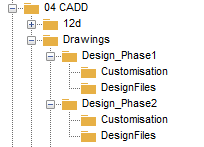
A simple relative pathing rule can be used so that the customisations are automatically downloaded from the relative subfolder: i.e. phase 1 customisation from the phase 1 folder, and the phase 2 customisation from the phase 2 folder.
How Download Dependencies Work
Download Dependencies are triggered when files with a specified file extension are checked-out. For example, when any file with the .dwg file extension is checked-out in this job, also download all contents from this CAD Customisation folder.
The rules also support multiple folders; i.e. ‘always download this folder, and on this specific project, additionally download this folder’.
Download Dependencies can be created for single files, Managed Folders and 12d Model Projects. It’s ideal for offices who have a centralised customisations job and have multiple customisations they need to download for specific projects or phases.
How to Set Up Download Dependency Rules
Setting up a rule is quick and doesn’t require any code. Here’s how to create one that downloads files from a CAD customisation folder whenever a CAD project is checked out.
1. First, navigate to the job you would like to create the rule for in your 12d Synergy job tree. Right-click the job folder and then click Edit from the menu. (Note: if you can’t see the Edit option you don’t have permissions to edit the job, and you’ll need to contact your system admin)
2. Choose the Rules settings category and then select the Download Dependency Rules column.
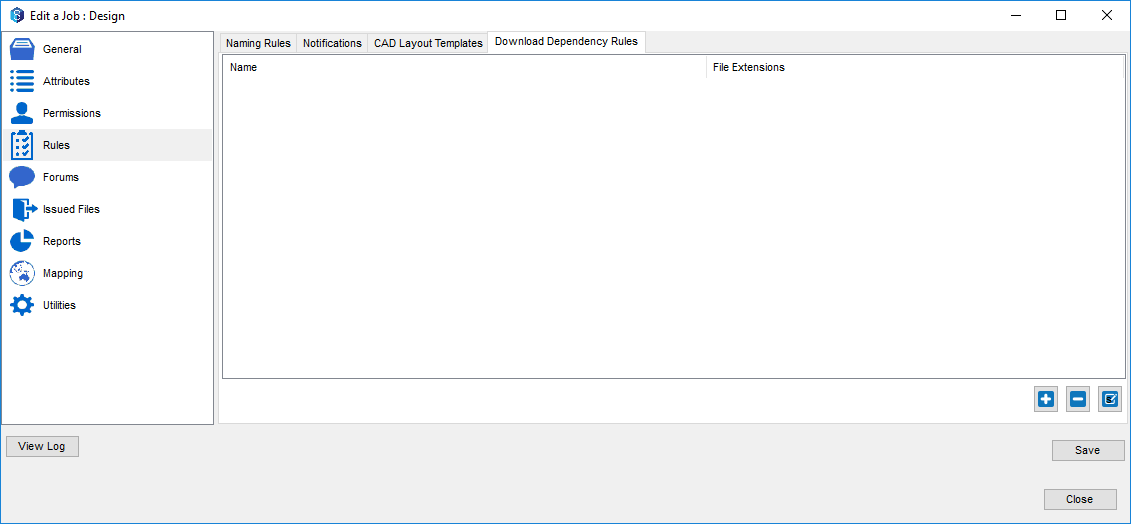
3. To create a new Rule, click the plus button, and name your new rule, e.g. “CAD Customisation”
4. Next denote which file extension(s) you want to trigger the rule with. To add file extensions, click the plus icon, and then type in the file extension(s). Here we’ll use “.dwg”. (Note: be mindful that some products use multiple file extensions, for example Microsoft Word’s “.doc” and “.docx”)
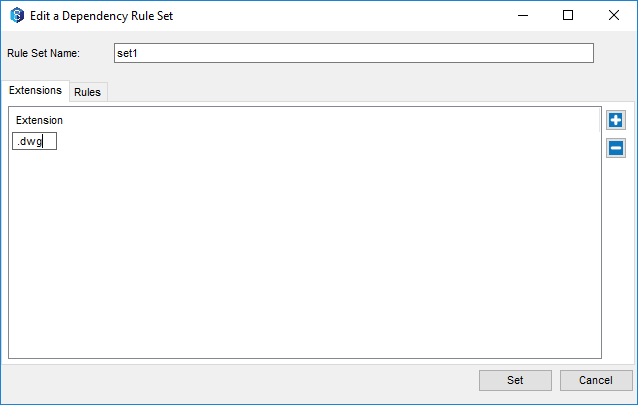
5. Once you’ve set up your trigger, you’ll then need to choose which folder will be downloaded. To do so, click the plus icon and then name your rule, e.g. “Phase 1 Customisations”.
6. Then select your rule mode: either specific or relative pathing can be used (see below for more information). Next, type in your file path, or click the “…” button and select the folder you want to download from.
Here we’ll select the CAD customisations folder, using either “Design_phase1/Customisation” (specific) or “../Customisation” (relative).
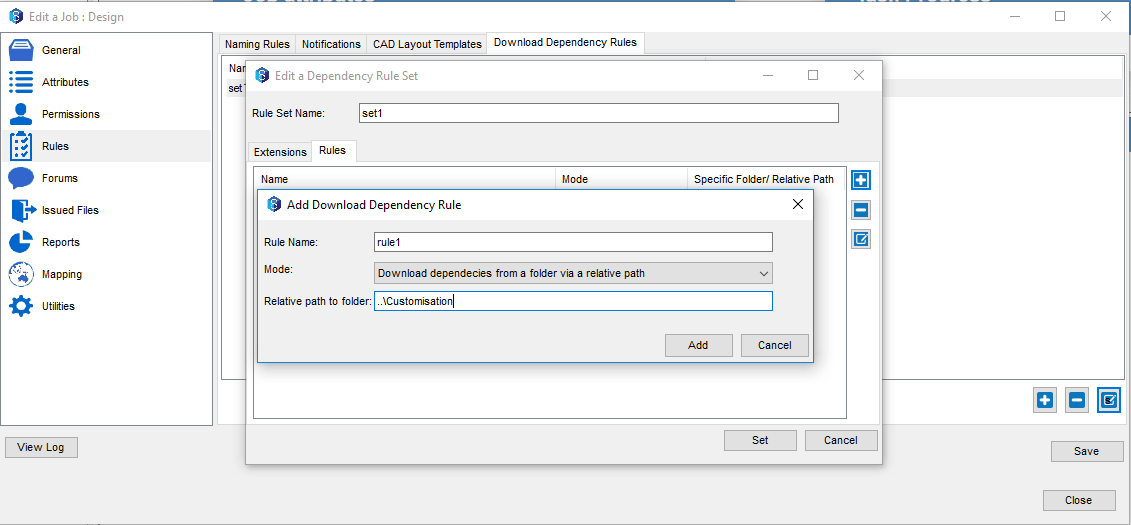
7. Lastly, we select Add, then Select, and then finally Save.
And that’s it, you’ve created your first Download Dependency rule! Woo! *Fist pump*
Now when a file with the .dwg extension is checked-out from within the job, the CAD customisations from the Customisation folder will also be automatically downloaded. It’s as easy as that.
Using Relative and Specific Pathing
A path is a slash-separated list of directory names that can include a file name, which specifies a folder or file destination for a program.
For example:
• “Job1234/CADD/Phase1/Customisation” selects the Customisation folder within the Phase 1 folder
• “Job1234/CADD/Phase1/Design/Road.dwg” selects a CAD drawing file from the Design folder
12d Synergy’s Download Dependencies can use either specific or relative pathing.
Specific Pathing
Specific pathing is used to explicitly specify a fixed folder. Both examples above use specific pathing. If you’re using specific pathing in a rule, you can simply click the “…” button and then select the folder and the path will be automatically created without needing to manually type it.
If a folder is moved or renamed, 12d Synergy will intuitively recognise this change, and the specific path will not be broken.
Relative Pathing
A relative path refers to a location that is relative to a current selected directory, i.e. where the rule is being triggered from.
Relative pathing enables you to set up Download Dependency Rules in your Job Templates and reuse them without having to manually set the path each time.
Relative pathing uses two special symbols, a dot “.” which represents the current directory, and a double dot “..” which is used to move up the directory hierarchy.
Relative pathing also enables different download folders to be referenced with a relative location. For example, downloading the Customisation folder that’s under the same parent folder as the current selection. This would be performed using “..\Customisation”.

12d Synergy
Common Data Environment
Make project information easier to manage with 12d Synergy.
From documents and drawings to emails, models and workflows, 12d Synergy brings everything together in one secure system so your team can work more efficiently from day one.
Book a Demo